
STARLINK SETUP GUIDE
How To Set Up Starlink In A Perth Home
Starlink can be a brilliant option for homes with poor internet options, but the quality of the installation matters. Dish location, roof mounting, cable entry and WiFi setup can all affect the final result.
Before You Start: How The Starlink Kit Connects Together
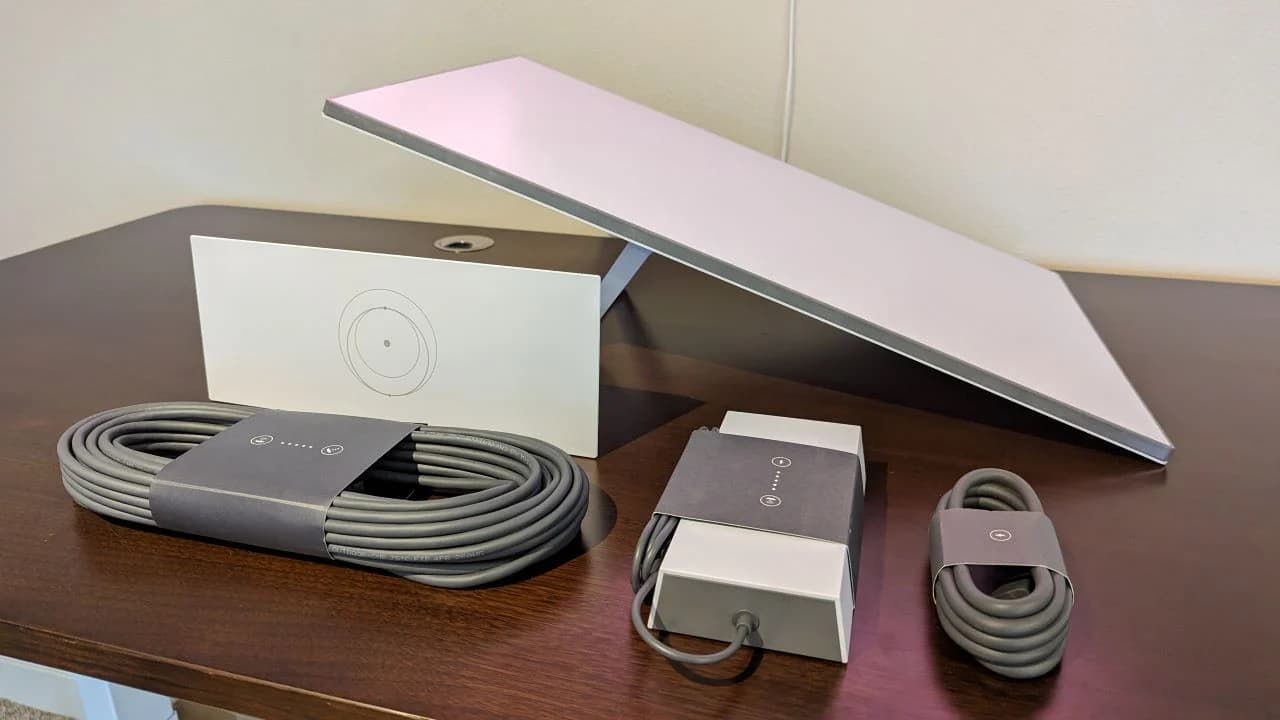
A typical Starlink setup is fairly simple once you understand how the parts connect. The Starlink dish, often called Dishy, connects back to the Starlink router using the supplied Starlink cable.
The router then plugs into power. Depending on the Starlink kit version, there may be a separate power supply or the power may be handled through the router system itself.
In simple terms, the chain is: power at the wall, power/router equipment inside the home, Starlink cable to the dish, and the dish mounted outside with a clear view of the sky.
The hard part is usually not the app setup. The hard part is choosing the right mounting location, running the cable cleanly, getting into the roof space safely, and setting up WiFi so it actually works where people need it.
STEP 1
What You Need For A Proper Starlink Setup
The kit gives you the core Starlink hardware, but most Perth homes still need proper mounting hardware, cable protection and suitable tools for a clean installation.
- Starlink kit, including dish, router and Starlink cable
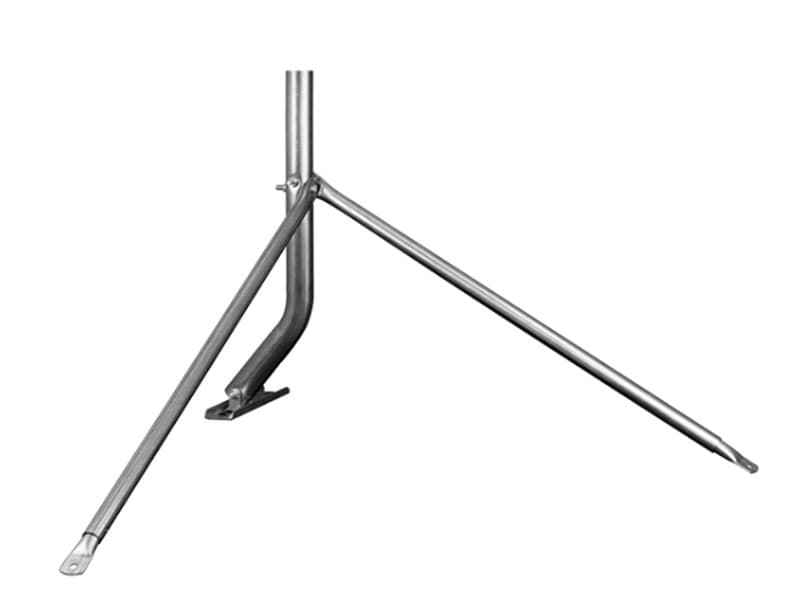
- Suitable Starlink mount
- Pole adapter if required for your chosen mount
- UV-rated conduit for exposed cable runs
- Cable entry solution such as a Dektite on Colorbond roofs
- Dust plate or brush plate for internal wall cable exit
- Drill, driver, roof-safe access equipment and basic hand tools
- Sealant and fixings suitable for the roof or wall material
Mount recommendation
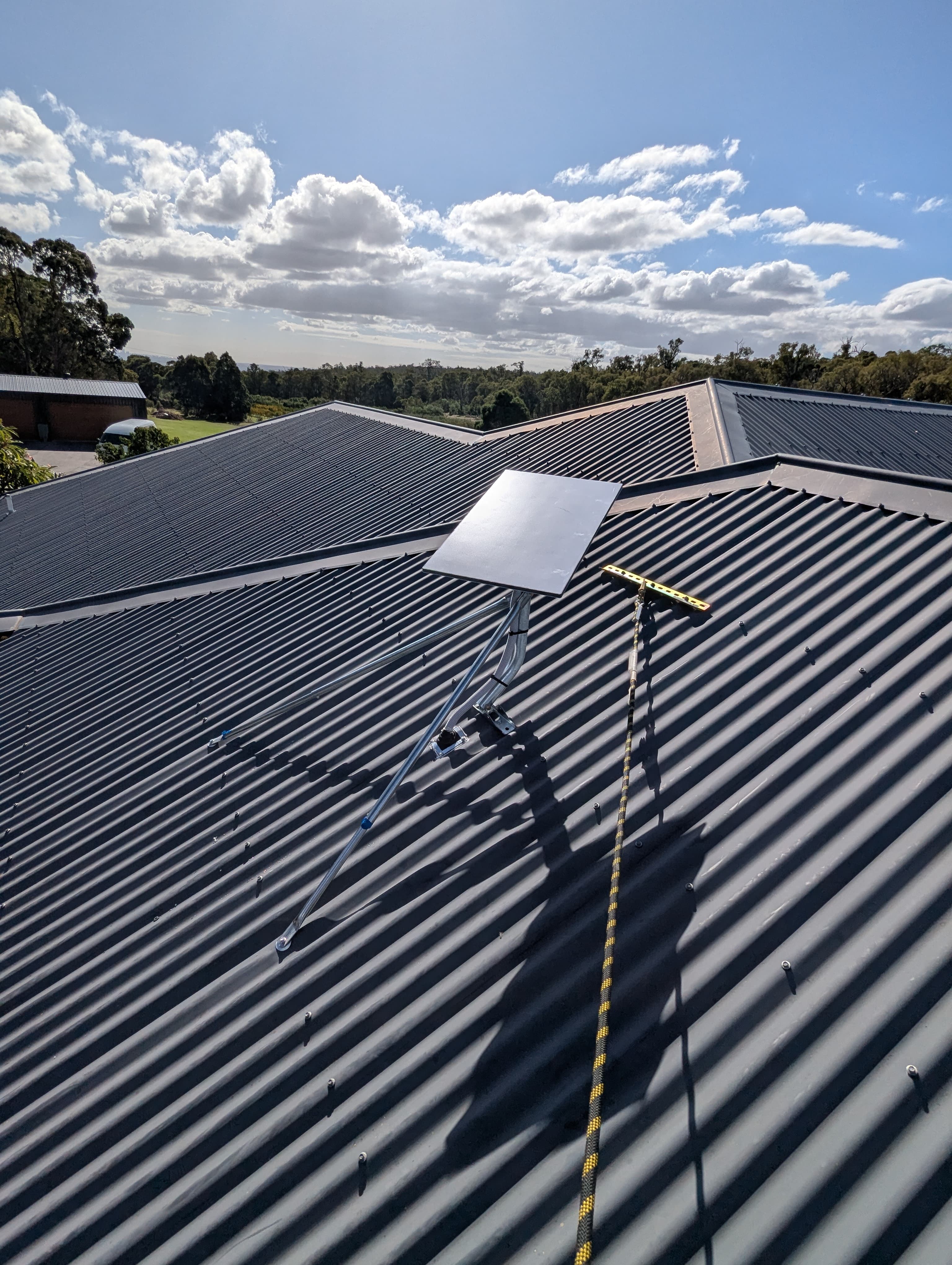
For tiled roofs, a gutter mount is often a practical option because the roof space is usually easier to access and the cable can often be run neatly into the ceiling space. For Colorbond roofs, a mount with stabilising legs is usually a better option because it spreads the load and keeps the dish more stable.
STEP 2
Find The Best Location For The Dish
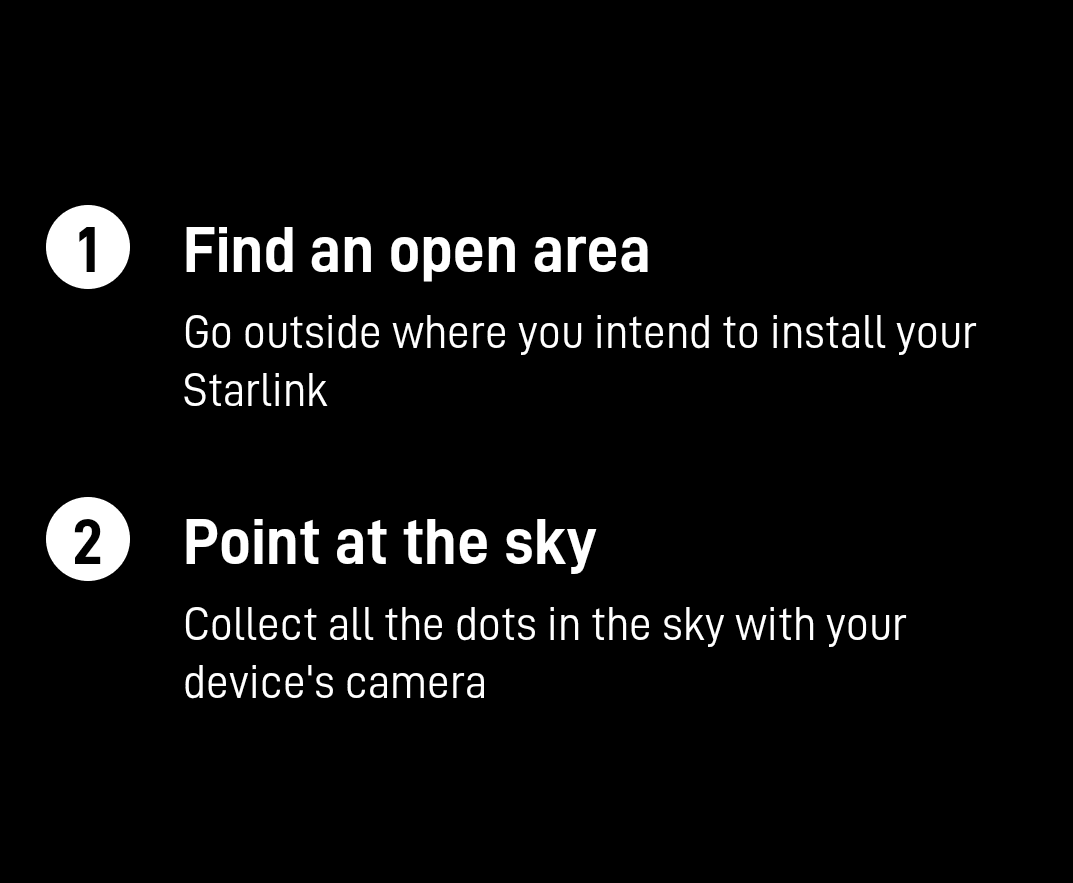
Before drilling or mounting anything, use the Starlink app to check the proposed dish location. The dish needs a clear view of the sky, and small obstructions can cause dropouts.
- Open the Starlink app
- Use the obstruction checker
- Test the location where you want to mount the dish
- Avoid trees, roof lines, chimneys, antennas and nearby structures
- Think about both signal quality and practical cable routing
STEP 3
Mount The Starlink Dish Securely
Once you have confirmed the location, mount the dish securely using the correct hardware for the roof type.
On tile roofs, a gutter mount can be a good option because it avoids unnecessary penetrations through tiles and often gives easier access to the roof cavity.
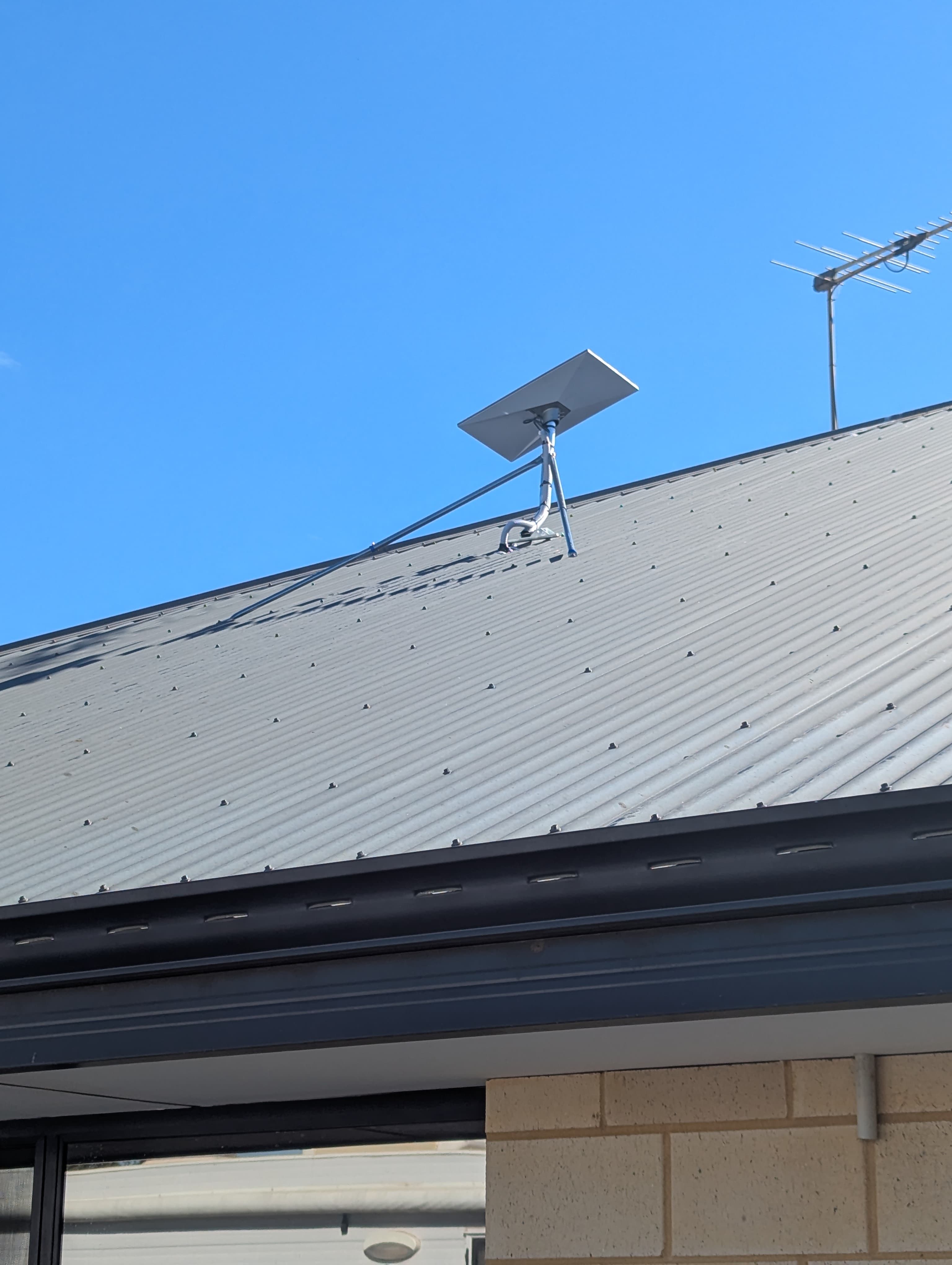
On Colorbond roofs, a roof mount with stabilising legs is usually preferred. If the cable enters through the roof sheet, a properly installed Dektite is recommended to help maintain weather protection.
Any cable exposed to sun or weather should be run in conduit. Loose exposed cable across a roof is poor workmanship and can create problems later.
- Use the correct mount for the roof type
- Keep the dish stable and secure
- Avoid unnecessary roof penetrations where possible
- Use conduit for exposed cable runs
- Use a proper cable entry method for Colorbond roofs
STEP 4
Run The Starlink Cable Cleanly
The Starlink cable should be protected, hidden where possible, and routed in a way that avoids damage.
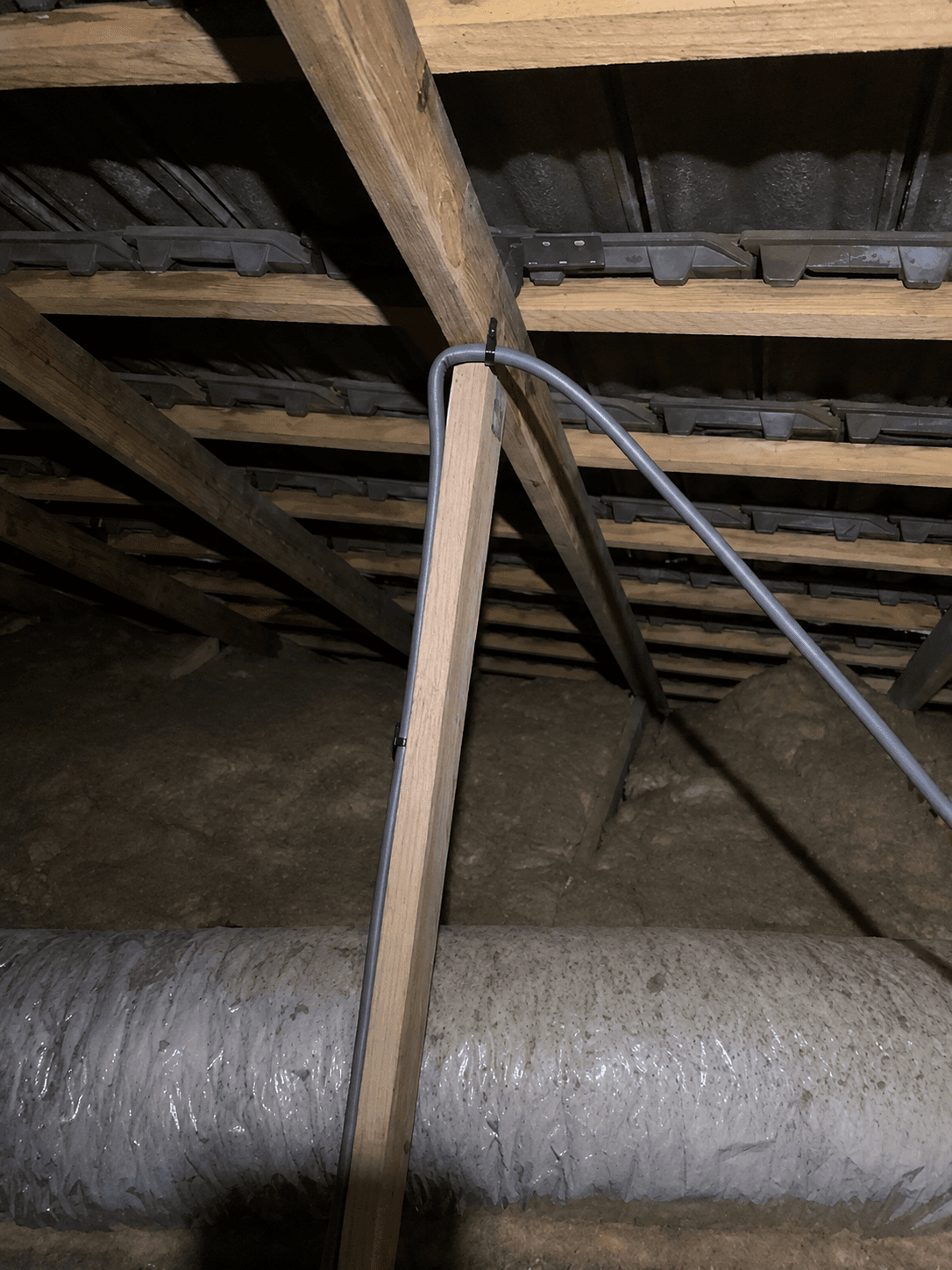
Where possible, run the cable through the roof space. This gives the cleanest result and avoids unnecessary external conduit.
For double brick Perth homes, an external wall cavity can sometimes be used to bring the cable down neatly. If there is no usable cavity, solid 25mm conduit can be used externally for a clean and protected cable run.
The aim is simple: protect the cable, keep the installation neat, and avoid ugly or vulnerable cable runs.
- Run through the roof space where possible
- Use wall cavities when practical
- Use solid conduit when no cavity is available
- Avoid sharp bends and cable damage
- Keep external cable protected from sun and weather
STEP 5
Bring The Cable Into The Home
Once the cable path is planned, drill the wall entry carefully and bring the cable through to the router location.
The Starlink cable should be treated carefully. Avoid cutting, crushing or modifying the cable unless you know exactly what you are doing.
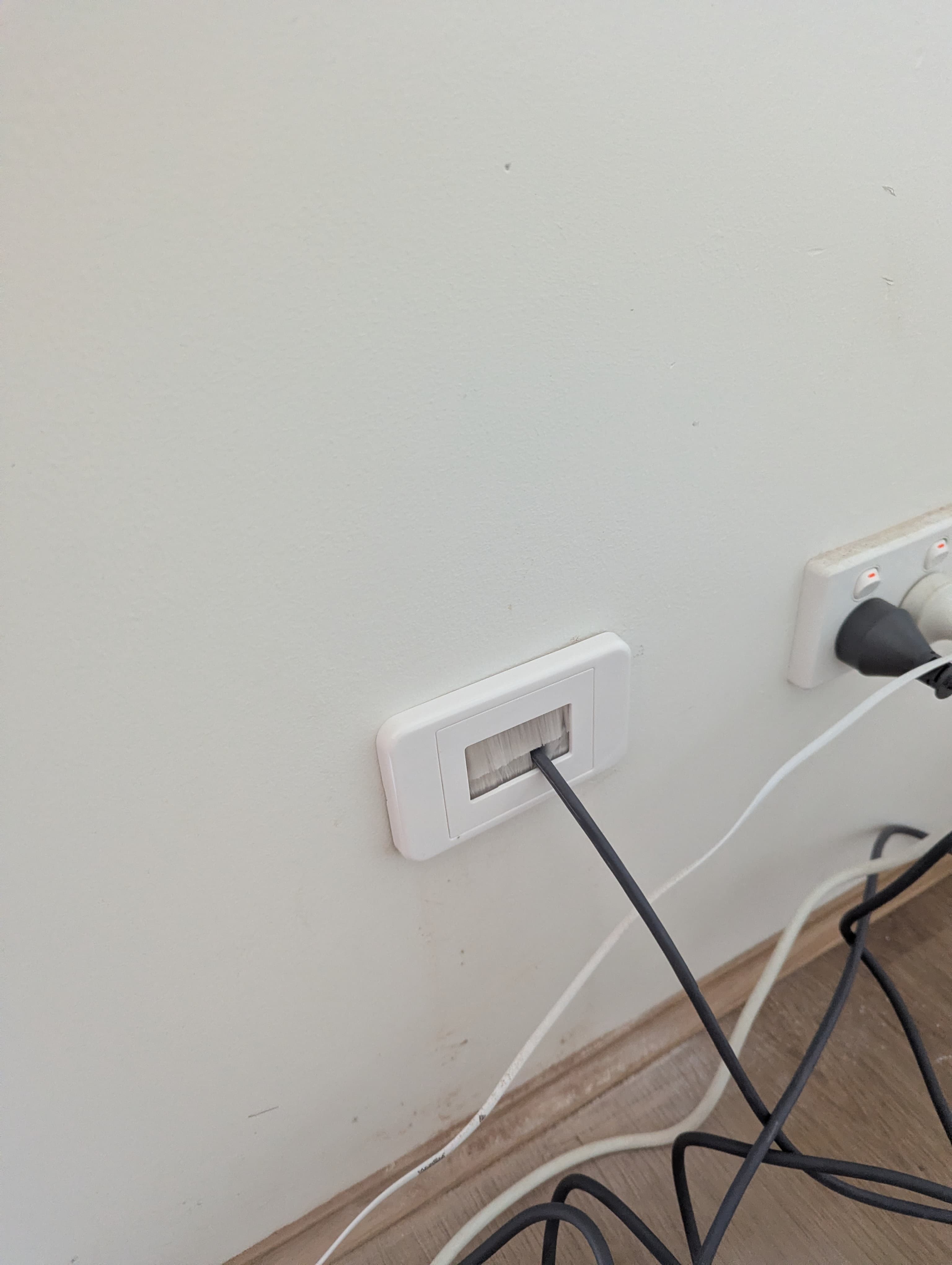
A dust plate or brush plate is recommended where the cable exits the wall. It gives a cleaner finish and helps keep the cable intact instead of trying to terminate or modify it unnecessarily.
- Choose the router location before drilling
- Drill carefully to avoid damage
- Pull the cable through without crushing it
- Use a dust plate or brush plate for a clean finish
- Leave enough cable length for future adjustment
STEP 6
Connect The Router
Once the dish cable is inside, connect the Starlink equipment and power up the system.
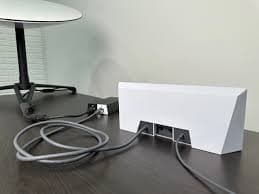
- Plug the Starlink router into power
- Connect the Starlink dish cable to the router or power supply as required by your kit
- Wait for the system to boot
- Check for status lights or app status
- Keep the router in a sensible location, not hidden inside a metal cabinet or tucked behind heavy obstructions
STEP 7
Set Up Starlink In The App
The Starlink app walks you through the basic setup, including connecting to the default WiFi network and configuring your own WiFi name and password.
- Download the Starlink app
- Connect your phone to the temporary STARLINK WiFi network
- Follow the app prompts
- Set your WiFi name and password
- Check the dish status
- Check alignment and obstruction warnings
STEP 8
Check Final Alignment And Performance
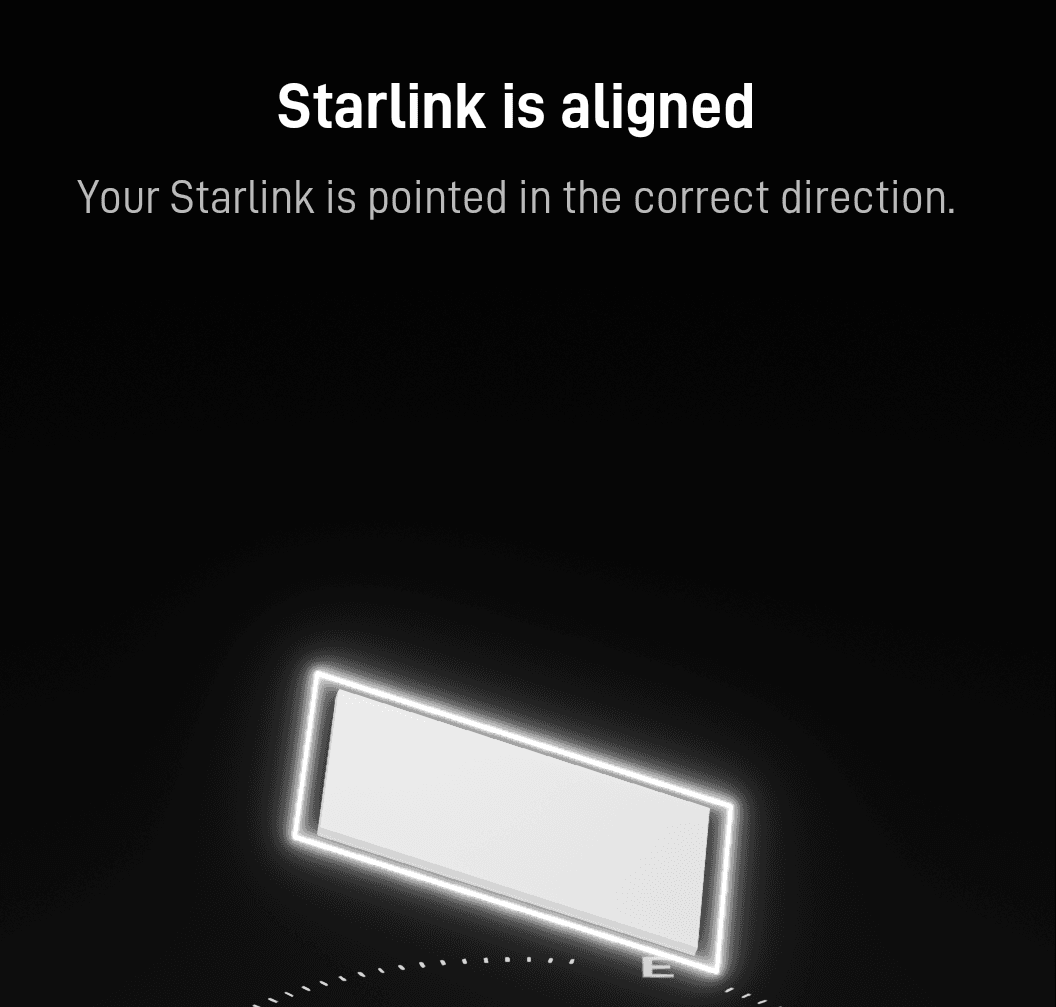
Once the dish is mounted and online, use the Starlink app to confirm alignment and check for obstructions.
Do not assume the job is finished just because the internet connects. A poor dish location or bad router position can still cause dropouts, slow speeds or weak WiFi inside the home.
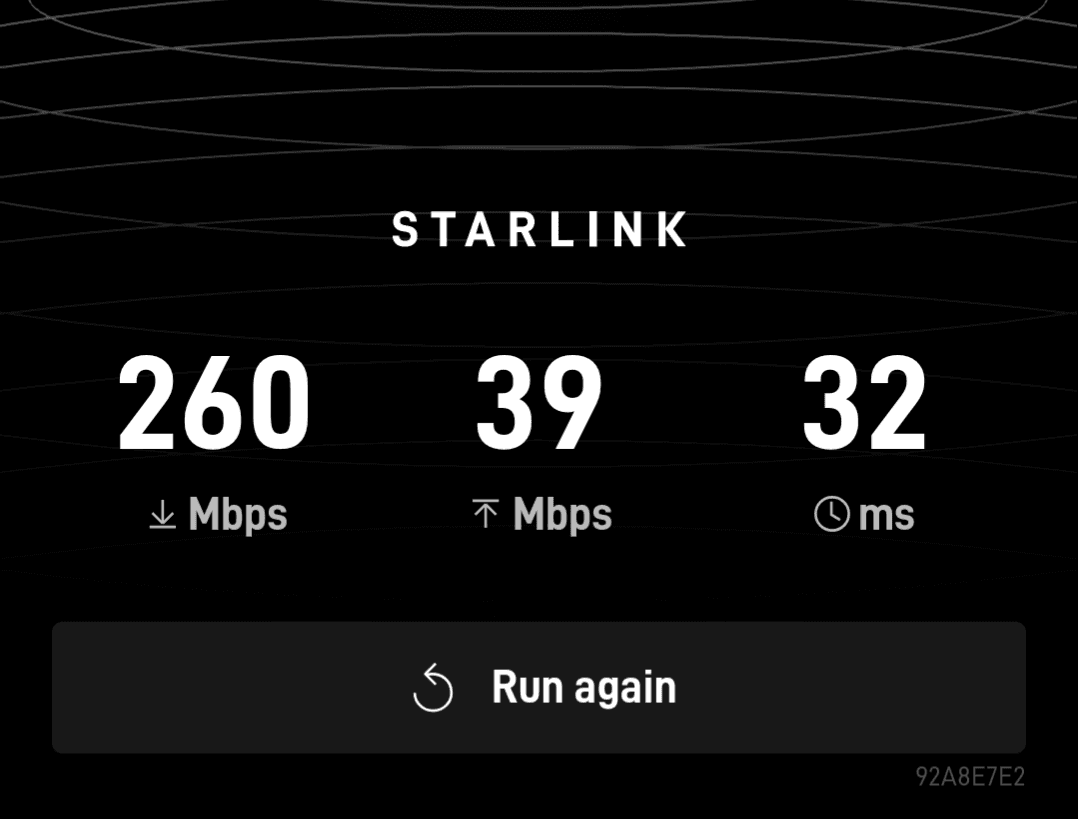
After setup, check performance in the rooms where you actually use the internet. If the Starlink router does not cover the home properly, you may need mesh WiFi, a better router location, an access point, or a wired data point.
- Confirm the dish is aligned correctly
- Check for obstruction warnings
- Run speed tests in several parts of the home
- Check bedrooms, office areas, living areas and outdoor spaces
- Consider mesh WiFi or access points if coverage is poor
Starlink Is Only Half The Job — The Home WiFi Still Matters
A good Starlink installation is more than just putting a dish on the roof. The dish needs a clear view of the sky, the cable needs to be run cleanly, and the router or WiFi system needs to be set up properly for the home.
In many Perth homes, especially double brick homes or larger properties, the Starlink router alone may not provide strong WiFi everywhere. That is where mesh WiFi, access points, outdoor WiFi or shed links can make a big difference.
Blake Smart Solutions installs Starlink systems and can also help extend WiFi coverage through the home, to outdoor areas, or to sheds and workshops.
Need Starlink Installed Properly?
We can install your Starlink, run the cable cleanly, set up the router, and recommend WiFi upgrades if your home needs better coverage.
Related services
Keep Building A Better Connection
Starlink Installation
Professional Starlink dish mounting, cable routing and router setup for Perth homes.
View serviceWiFi Boost
Improve weak WiFi, dead spots and poor coverage after your Starlink installation.
View serviceShed WiFi
Extend internet from the main house to a shed, granny flat or workshop.
View service